

How to Delete Everything from iPhone?
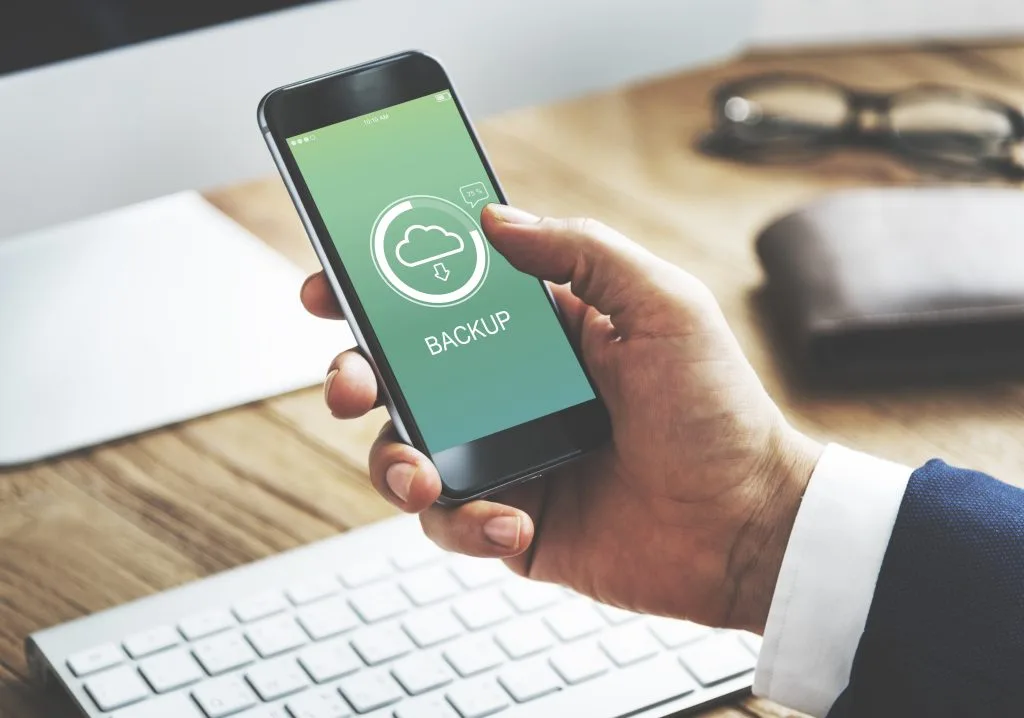
1. How to create a backup before deleting data
Before starting any data deletion actions, it is essential to create a backup. This will protect important information (contacts, photos, messages, app data) and allow you to restore it if needed. The easiest way is to use iCloud backups: open Settings > [your name] > iCloud > iCloud Backup and turn on the feature, then click “Back Up Now” if needed. If your device is low on iCloud storage, consider upgrading to an iCloud+ plan. Alternatively, you can create a backup on your computer using Finder (macOS) or iTunes (Windows). If you are unsure how to do this, many phone repair centers in Lithuania can help you safely create a backup and check if it was created correctly.
2. How to sign out of iCloud and Apple ID account
Why is this important?
Signing out of your Apple ID and iCloud removes Find My iPhone (Activation Lock), so the new owner cannot access your personal data and can fully set up the device.
How to do it?
Open Settings > [your name] > scroll down and select “Sign Out,” enter your Apple ID password, and confirm. Before doing this, it is recommended to: unpair your Apple Watch (this also removes Activation Lock from the watch), turn off iMessage (Settings > Messages > iMessage – “Off”) and FaceTime, and remove Apple Pay cards. If you are switching to a non-Apple phone, also deregister iMessage (if necessary – online). If you encounter difficulties, iPhone service specialists in Lithuania can help you perform these actions correctly.
3. How to completely delete everything from iPhone
Steps for deletion
To completely delete your iPhone, follow these steps:
- Go to Settings > General > Transfer or Reset.
- Select “Erase All Content and Settings.”
- If prompted, enter your device passcode or Apple ID password and confirm.
During deletion, all data is removed, and factory settings are restored. If you are using eSIM, the system may prompt you to remove the eSIM profile as well – this is recommended before handing over the device. The duration depends on the amount of data and the condition of the device. If you have technical issues (e.g., broken screen, unresponsive touch, battery problems), it is safer to consult iPhone repair specialists (in Vilnius, Kaunas, Klaipėda, etc.) to ensure deletion and preparation for sale are done correctly.
4. How to check if all data has been successfully deleted
After the reset, the iPhone will restart and show the initial welcome/setup (“Hello”) screen. This means the content has been removed. To ensure this, go through the initial setup screens, but do not sign in to your Apple ID. Also, check if the device is removed from your Find My list (by logging into iCloud.com or the Find My app), and if you have an eSIM plan – whether the profile has been removed. If in doubt, service centers can perform an additional check to ensure Activation Lock is disabled and the device is fully prepared for the new owner.
5. What else to do before the transfer process
Physical inspection
Make sure there are no visible damages (especially to the screen and battery). If necessary, repair it first – a tidy device is valued higher and transferred more smoothly.
Remove cases and accessories
Remove cases, tempered glass/film protectors, and take out the physical SIM (if used). If there was an eSIM, delete it before transfer or contact your carrier for transfer.
Documents and warranty
If you have the original packaging, purchase documents, or a valid warranty/AppleCare, provide them together – this increases the device’s reliability and value to the buyer.
6. Help and consultation if you have questions
If you encounter difficulties creating backups, signing out of your Apple ID, removing eSIM, or deleting data, contact a reliable phone repair shop. iPhone service teams in Lithuania will help you safely perform all actions: from creating a backup and disabling Find My to fully preparing the device for transfer and checking its condition.
Conclusion
Completely deleting data from your iPhone is a necessary step before selling or transferring the device. By following the steps outlined above – first creating a backup, signing out of your Apple ID/disabling Find My, and then erasing all content and settings – you will ensure that your personal information is protected and the device is properly prepared for the new owner. If in doubt, consult professionals – this will help you avoid Activation Lock, eSIM, or other surprises and save time.
Need help with your device?
If your phone, computer, or tablet is not working properly, bring it to Fixas. We perform quick diagnostics and usually complete repairs within 1–3 hours.